Buying a faster internet plan will not fix a weak Wi‑Fi signal. Your ISP delivers a pipe to the gateway. Everything after that—bands, power limits, walls, and stubborn client devices—is radio. Before you upgrade the plan, fix the RF and the placement.
These tips are about signal quality and roaming behavior, not marketing megabits.
Plan speed vs RF reality
A speed test next to the router can look fine while a laptop two rooms away struggles. Congestion and plan caps matter, but dead zones, sticky clients, and band choice are separate problems. Treat “slow Wi‑Fi” as a radio and architecture question first.
Pick the right band—and respect power limits
Wi‑Fi bands are not equal, and each has regulatory power limits even when the air looks quiet. Quiet spectrum does not unlock extra transmit power.
In the United States, high-band 5 GHz (UNII‑3, roughly 5.725–5.85 GHz) often allows higher EIRP than lower or mid 5 GHz bands. That can help outdoor or longer indoor links when gear and antennas support it. Mid and low 5 GHz bands trade different channel sets and rules—including DFS—not “more power because it feels empty.”
Use 5 GHz (and 6 GHz where clients support it) near the access point for capacity. Do not assume every device should live on the noisiest or longest-reaching band just because it shows bars.
DFS hits and gear that cannot handle them
Parts of 5 GHz share spectrum with radar. Access points on DFS channels must detect radar and leave the channel—sometimes after a listening period before they can use the channel at all. Clients that do not follow channel switch announcements cleanly will drop, hang, or refuse those channels.
If you see random disconnects on 5 GHz, check whether the AP is on a DFS channel and whether client devices (IoT, older phones, specialty gear) support DFS well. Moving critical SSIDs to non‑DFS channels or upgrading flaky clients is often smarter than blaming the ISP plan.
2.4 GHz: farther reach, messier neighborhood
2.4 GHz travels farther and punches through some materials better than 5 GHz. It also has:
- Fewer clean channel options and smaller practical channel widths
- Heavy noise from neighbors, microwaves, baby monitors, and IoT
- Compatibility quirks with cheap IoT devices that refuse 5 GHz entirely
Use 2.4 GHz when you must. Do not park every laptop there “because it reaches the backyard.”
Placement: metal reflects, trees absorb
Where you put the AP matters more than most people think.
- Metal studs in walls act like a partial cage—expect reflection and nulls, not a smooth bubble
- Metal mesh in stucco or foil-backed insulation on the wall you are trying to cross will bounce and attenuate signal
- Treat metal as a reflector: filing cabinets, mirrors, appliances, HVAC ducts
- Treat trees and dense foliage as absorbers: water in leaves soaks RF, especially at higher frequencies
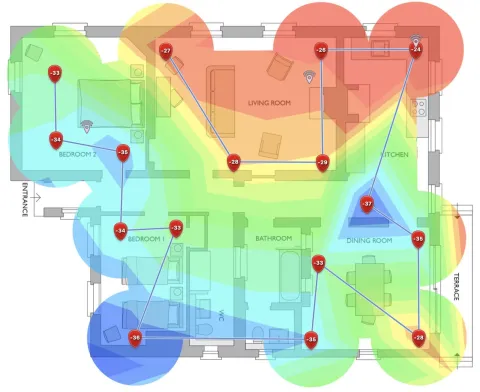
Central, elevated, clear of cabinets beats a router on the floor behind a TV. For multi-story homes, one AP per floor often beats one screaming radio in the garage.
Sticky clients: strong signal is not the right AP
Client devices decide when to roam. If a phone still sees a “good enough” signal from the living-room AP, it may refuse to move to the closer bedroom AP—even when throughput is terrible. That is a sticky client.
Ways to force better behavior:
- Set a minimum RSSI or assist roaming features on enterprise/prosumer controllers so weak associations get kicked
- Use band steering carefully (do not strand IoT that only speaks 2.4 GHz)
- Create a dedicated SSID for a specific band or AP when a weird client will not roam and you need it on a particular radio
- Lower transmit power on APs that over-cover each other so clients hear clearer cell edges
It is up to the client to attach and move. Be ready to engineer around devices that will not.
When you need another AP—or better service design
Extenders that half-repeat a weak signal often add latency and airtime waste. A properly placed second access point on wired backhaul (or a planned mesh) is usually cleaner. If the wired internet is fine at the gateway and Wi‑Fi is the complaint, fix Wi‑Fi—do not buy megabits you cannot radiate.
For home service in Las Vegas, see HomeNet. For managed Wi‑Fi design in denser or commercial spaces, see AirNet.
Next steps
Check band choice and power limits, watch for DFS pain, walk the building for metal and foliage, and assume sticky clients until proven otherwise. Then decide if you need another AP—not another plan tier.
Need help sorting internet vs Wi‑Fi issues? Call or text 702.900.0000 or contact isp.net.